Windows Performance Tuning
Jump to navigation
Jump to search

Goals
Maximize performance for the vpsace server
There are a few settings we can change to make sure our users get the best experience. These settings are advised as per the Windows Tuning Guide fo Vspace which should be in the vSpace directory of the Recovery Drive.
Procedures
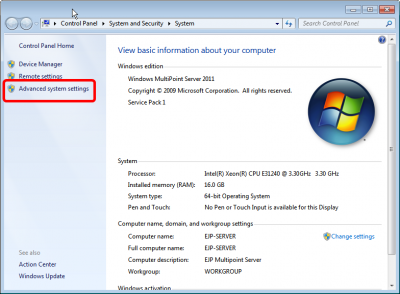
Open Computer properties
- Right click on My computer
- Select Properties
- Alternatively, open the System control panel applet
Select Advanced system settings

- Once the System panel is up, select Advanced system settings from the menu on the left
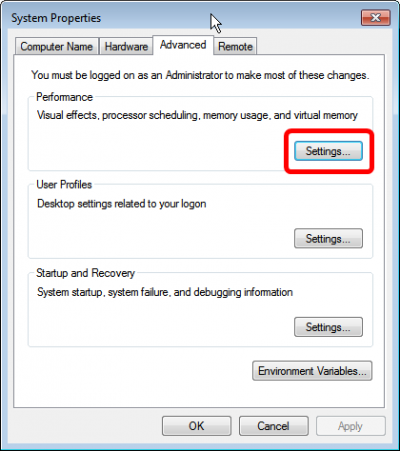
Select Settings

- On the Advanced tab of the System properties, select Performance Settings
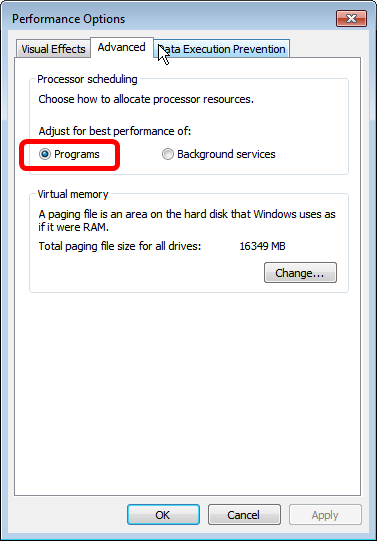
Select the Advanced tab of Performance Options

- Select the Advanced tab of the Performance Options window
- Select Adjust for for best performance of Programs
Select the Data Execution Prevention tab of Performance Options

- Select the Data Execution Prevention tab of the Performance Options window
- Select Turn on DEP for essential Windows programs and services only
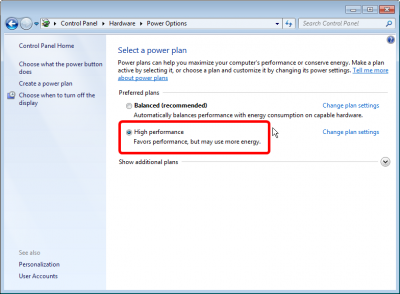
Power options Control panel

- Open the Power Options control panel
- Select the High Performance Power Plan
Open Internet Options

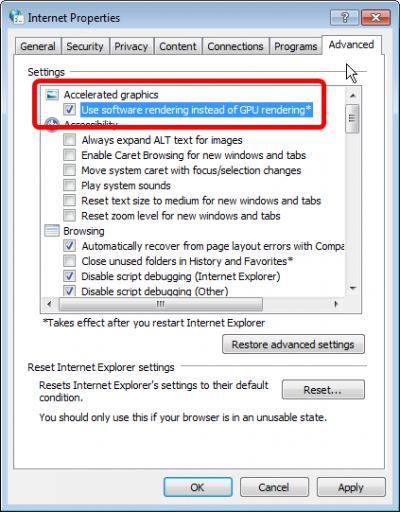
- After Windows Update IE 9 will have this feature
- In the Internet Options of the control panel
- Select Use software rendering instead of GPU rendering