Windows Activation
Jump to navigation
Jump to search
Goals
Change the prodcut key
The default product key expects that a Key Management Server (KMS) server will be managing licensing. In our remote environment, we want a Multiple Activation Key (MAK)
Activate Windows
Connect to windows automated activation by phone or Internet. If we don't activate Windows will be unhappy.
Procedures
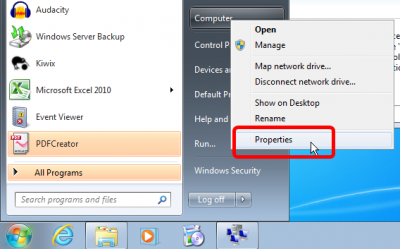
Open computer properties
.png)
- Right click on Computer, select Properties
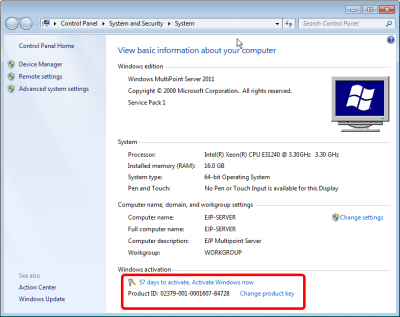
Open computer properties
.png)
- Observe that the Server is not activated
- Click on Change Product key
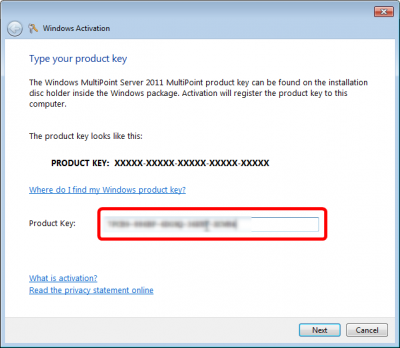
Open computer properties
.png)
- Enter the Windows Multipoint 2011 MAK
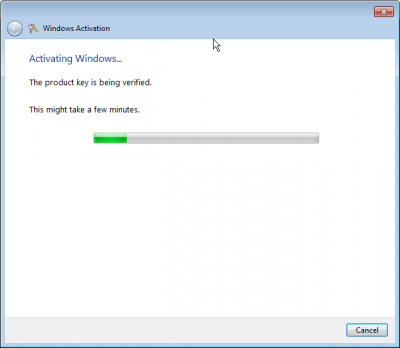
It will try to activate over the internet
.png)
- Wait while it fails, if there is no Internet
Choose other activation methods
.png)
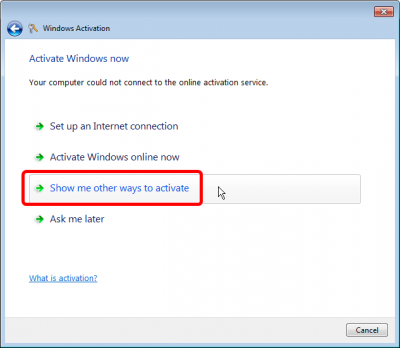
- If there is no Internet, it will offer you other options.
- Select Show me other ways to activate
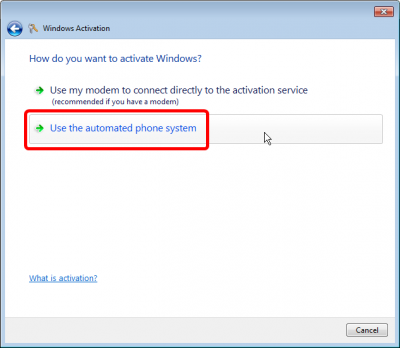
Select Phone activation
.png)
- Select Use the automated phone system
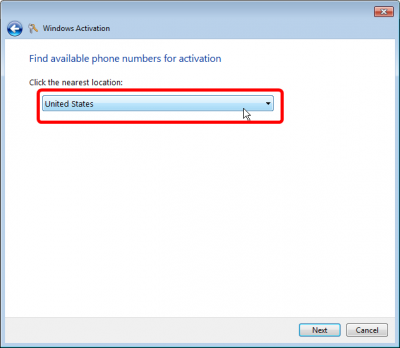
Select Country
.png)
- Wants to know which country you are in to offer you a number to call.
- Select United States
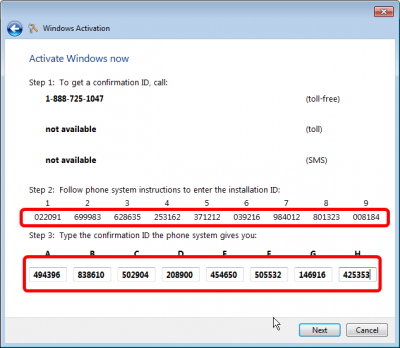
Tedious phone activation
.png)
- Call the number 1-888-725-1047
- Use the automated system to enter the Installation ID
- Type the repsonse int he boxes
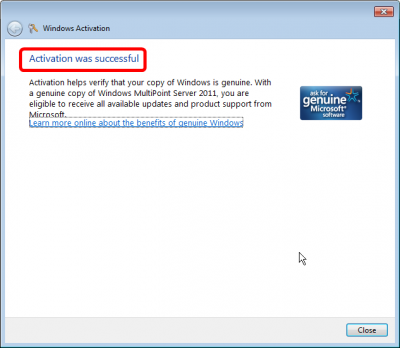
Success
.png)
- Hooray
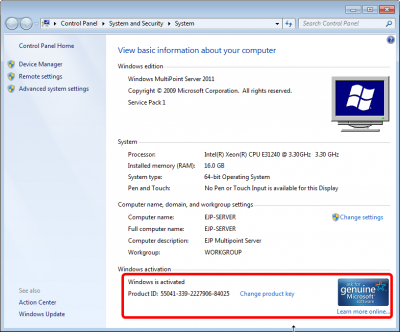
Observe Happy Activation
.png)
- Windows is Activated
Reboot the Computer before proceeding
- Now that our product ID has changed, the behavior of the other licensing operations will change, if you don't reboot now.