Open Local Policy Editor
Jump to navigation
Jump to search
Goals
There are a lot of places that certain settings in Windows are stored. One of those places is the Local Policy. Local Policy has settings that affect both users and the local computer. If this computer was part of a Windows Domain, this policy would be superseded by the Domain Policy.
Open the Local Policy MMC
Depending on the task you want to perform, you may need to access the Local Policy
Procedures
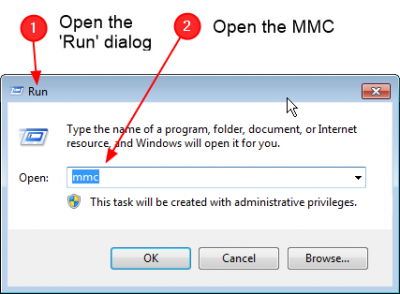
Open the MMC

- Open the Run dialog
- Either by pressing Window-R or by selecting Run from the start menu
- Type mmc
- Press Enter
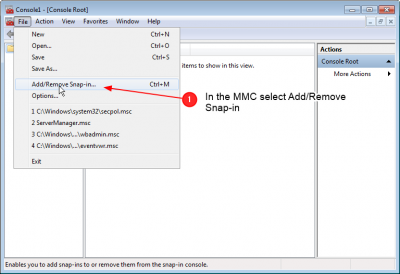
Select Add/remove Snapin

The MMC is organized into many "Snap-ins" which allow each component to provide a unique interface to its own settings.
- Click the File Menu
- Select Add/Remove Snap-in'
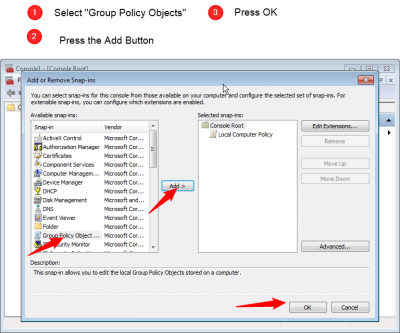
Select Group Policy Object

- There will be a snap-in on the left named Group Policy Object
- Select that snap-in
- Press the Add button to move it to the right side
- Note, you can select many snapins if you want to manage more things
- When you are done, click OK to move on
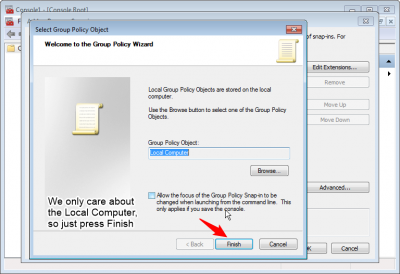
Confirm that you want to edit Local Computer

You can technically use this snap-in to manage the local computer or other computers.
- Since we are only interested in the local computer just press Finish