Kiwix
Jump to navigation
Jump to search

License: GPLv3 License
http://www.kiwix.org/wiki/FeedFormat
http://www.kiwix.org/wiki/Kiwix-manage
http://www.kiwix.org/wiki/Library_manager
Install
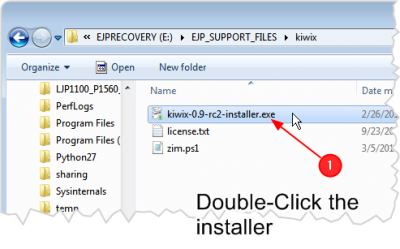
Step 1. Double click the kiwix installer

Step 2. Select English as the language

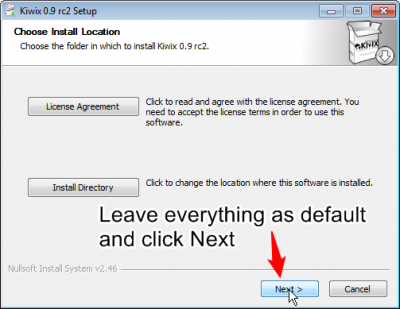
Step 3. Leave everything as default

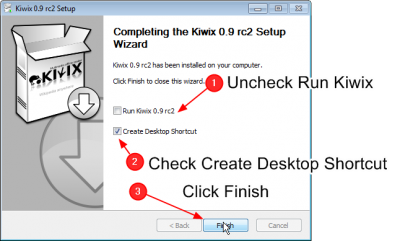
Step 4. Upon finish

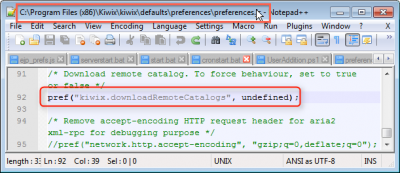
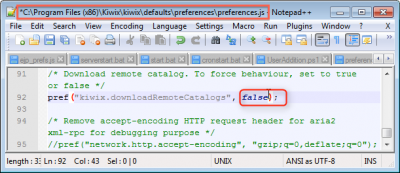
Step 5. Locate file C:\Program Files (x86)\Kiwix\kiwix\defaults\preferences\preferences.js

- Open File: C:\Program Files (x86)\Kiwix\kiwix\defaults\preferences\preferences.js
- Locate line "pref("kiwix.downloadRemoteCatalogs", undefined");
Step 6. Update file preference.js

- change undefined to false
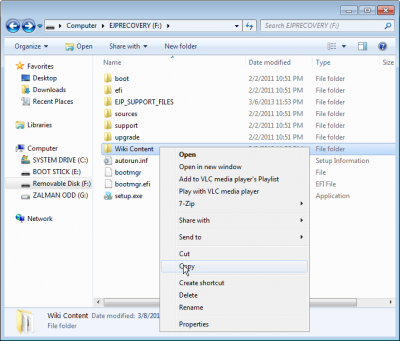
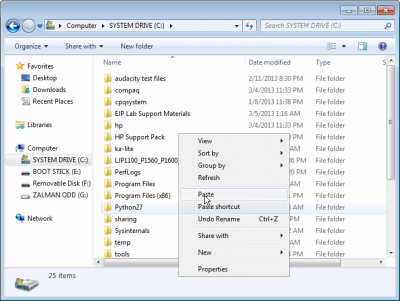
Step 7. Copy folder "Wiki Content"

- Copy Folder "Wiki Content" from EJPRECOVERY drive

- To C:\
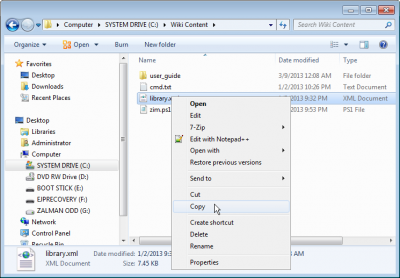
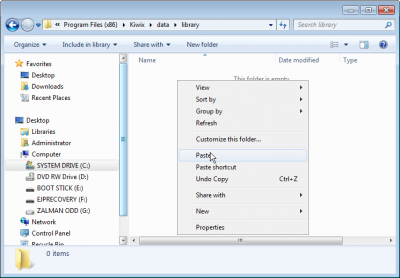
Step 8. Copy library.xml

- Copy library.xml file from from C:\Wiki Content drive

- To C:\Program Files (x86)\Kiwix\data\library
Maintenance
Add new zim file to the library

To add a zim file to the library:
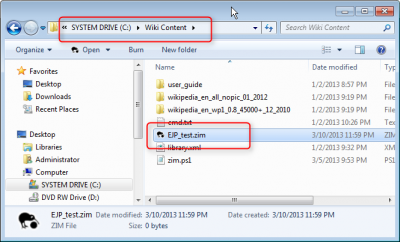
- Put the zim file (i.e. EJP_test.zim) into C:\Wiki Content

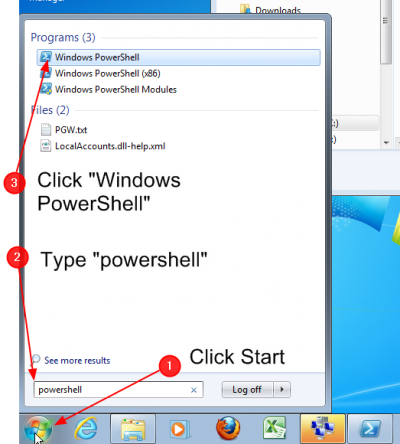
- Click start -> type "powershell"
- Right-click "Windows PowerShell"
- Select "Run as Administrator" (if you don't run as administrator, the script will fail because it cannot write to the Wiki content directory)

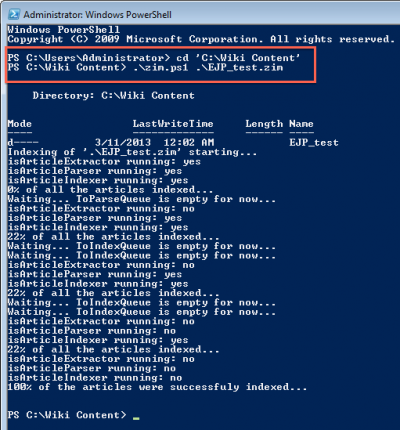
- On Power shell, type: cd 'C:\Wiki Content' -> hit enter
- Continue to type ".\zim.ps1 <zim_file_name> -> hit enter
What does the script do?
The powershell script performs the following:
- Create C:\Wiki Content\<new_zim_file> folder
- Create the new zim file index files and put it in C:\Wiki Content\<new_zim_file> folder
- Move the zim file to C:\Wiki Content\<zim_name> folder
- Create a specific library file with the zim file and its index file
- Put the new library file in <kiwix directory>/data/library
- User can browse the new zim file using kiwix
Manual
After install, follow the steps to maintain the kiwix library. For steps that are listed as "is automated", one should use the automated script to perform the steps
Manually Set default preferences
kiwix\defaults\preferences\preferences.js:
 /* Download remote catalog. To force behaviour, set to true or false */
 pref("kiwix.downloadRemoteCatalogs", false);
Manually Preparing index files (is automated)
"C:\Program Files (x86)\Kiwix\kiwix\xulrunner\kiwix-index.exe"
 c:\
 cd "Wiki Content\user_guide"
 c:\Wiki Content\user_guide>"C:\Program Files (x86)\Kiwix\kiwix\xulrunner\kiwix-index.exe" --verbose ".\EJP User guide.zim" .
 Indexing of '.\EJP User guide.zim' starting...
 isArticleExtractor running: no
 isArticleParser running: yes
 isArticleIndexer running: yes
 22% of all the articles indexed...
 Waiting... ToIndexQueue is empty for now...
 isArticleExtractor running: no
 isArticleParser running: no
 isArticleIndexer running: no
 100% of the articles were successfuly indexed...
c:\Wiki Content\user_guide>
Manually Prepare library File (is automated)
The system library file is
"C:\Program Files (x86)\Kiwix\data\library\library.xml"
The kiwix manage tool is
"C:\Program Files (x86)\Kiwix\kiwix\xulrunner\kiwix-manage.exe"
You can add or remove content by editing this file by hand. You can also use the kiwix-manage tool
c:\Wiki Content\user_guide>"C:\Program Files (x86)\Kiwix\kiwix\xulrunner\kiwix-manage.exe" "C:\Wiki Content\library.xml" add "C:\Wiki Content\user_guide\EJP User guide.zim" -i "C:\Wiki Content\user_guide"