Change Unidentified Networks to Private
Jump to navigation
Jump to search
Goals
Set the default Policy for Unidentifed Networks to be Private
Much like the Internet access detection, Windows tries to help guess what firwall settings are appropriate for your network. Some of the key attributes windows uses are whether you are in a domain, and the default gateway for your network connection. Since we have neither, there is no way for windows to guess that we are on a private network.
By applying a Local Security Policy so that all Unidentified Networks are private by default we can change that.
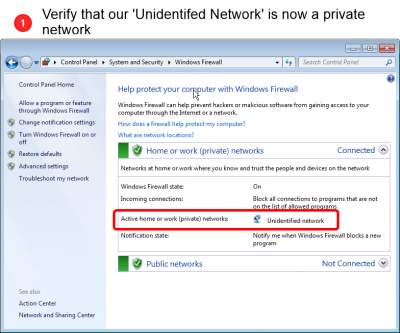
Verify that the firewall reports we are on a Private network
The main reason we care about this at all is that Public and Private networks may have differnent firewall settings.
Procedures
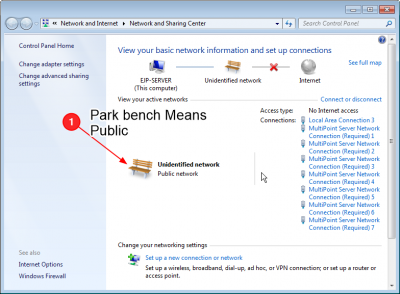
Observe we are still Public
.png)
- Open the Network and Sharing Center
- Observe the Park Bench Icon and the public label beneath it
- If it does not look like this then this is already done
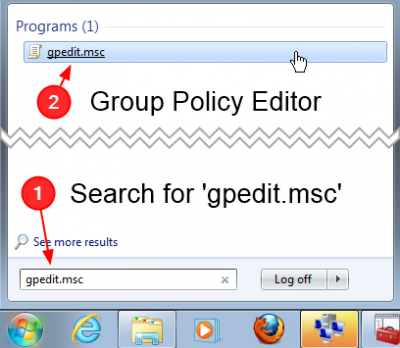
Open the Group Policy Editor
.png)
- Open the start menu
- Search for gpedit.msc
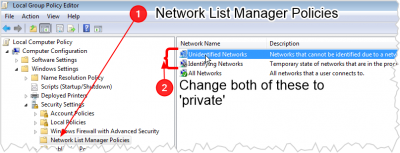
Network List polices
.png)
- In the Group Policy Editor Navigate to
- Computer Configuration
- Windows Settings
- Security Settings
- Network List Manager Polices
- Security Settings
- Windows Settings
- Computer Configuration
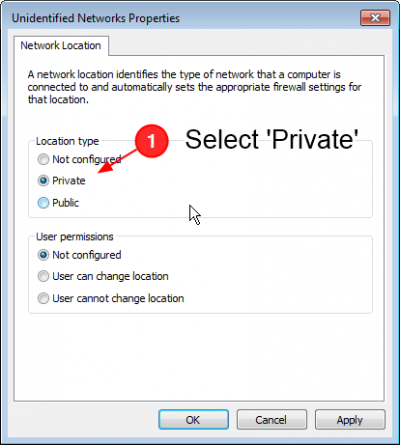
Change Unidentified Networks to private
.png)
- Double click on Unidentified Networks
- Choose Private
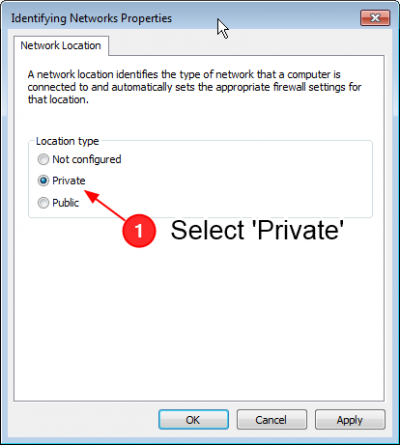
Change Identifying Networks tp private
.png)
- Double click on Identifying Networks
- Choose Private
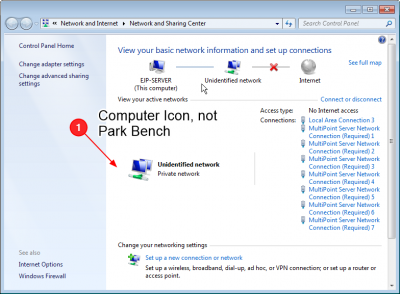
Verify Private in Network and Sharing Center
.png)
- Open the Network and Sharing Center
- Observe that the icon is now a Computer instead of a Park bench
Verify Private in Firewall Settings
.png)
- Open the Windows Firewall
- Verify that our network labeled Unidentified Network is listed as an Active Home or Work (private) network